




If your team runs on Google Workspace, you can capture a way of working once and use it across Gmail, Docs, Slides and more.
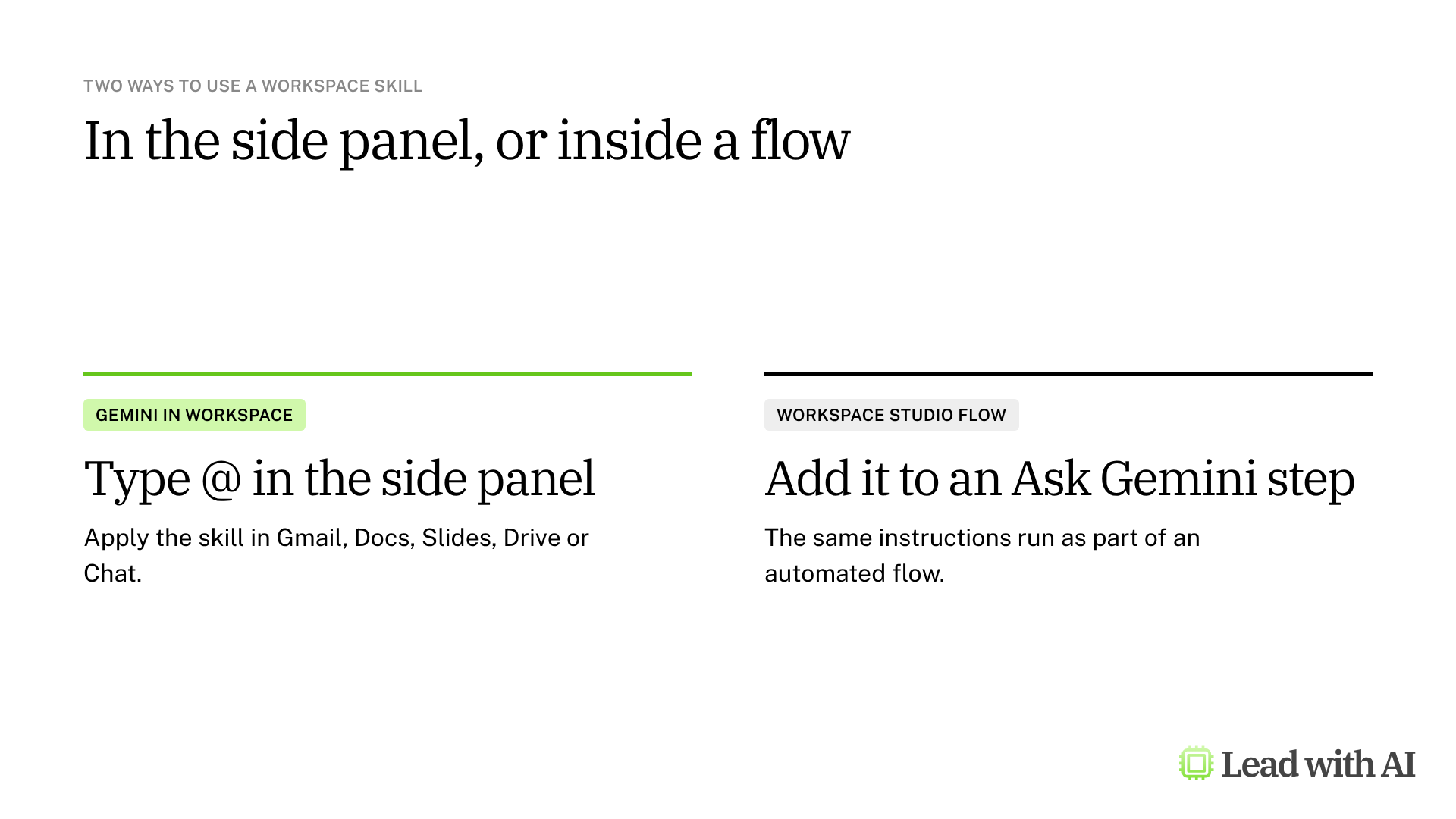
Google Workspace skills are reusable instructions for Gemini. You build them in Workspace Studio, then call them with @ in the Gemini side panel or run them inside an automated flow.
Where to find skills in Google Workspace
Open Workspace Studio at studio.workspace.google.com and select Skills in the left menu. From there you can create skills, turn them on and browse templates from Google, such as Quick Overviews.

What your plan includes
- Editions: Business Starter, Standard and Plus, Enterprise editions, and Google AI Pro for Education.
- Rollout: skills in Workspace started as a Gemini Beta feature that an admin had to turn on. Google began rolling them out more widely in November 2026, so availability still varies by organization.
- Admin control: admins can turn skills on or off for the organization, and control external sharing.
- Where you can use them: the Gemini side panel in Gmail, Docs, Slides, Drive and Chat, and flows in Workspace Studio. Skills are not yet available in Sheets or Meet.
- Age: skills in Workspace are only available to users over 18.
When a Workspace skill earns its place
- Weekly updates and meeting recaps in a consistent format.
- Brand guidelines applied to every email draft or document.
- Steps inside a flow, so automated work follows the same instructions as your manual work.
How to build a Workspace skill, step by step
Step 1: Create a skill. In Workspace Studio, open Skills and select Create.
Step 2: Choose how to write it. Build the skill with Gemini's help in the left column, or enter your instructions directly in the right column.
Step 3: Add a name, description and instructions. Describe what the skill does and when to use it, then add your CODO instructions.
Step 4: Save it and turn it on. A skill must be turned on before you can use it with Gemini in Workspace.
Step 5: Test it in a document. Open a Google Doc with your notes, select Ask Gemini, add any supporting files from Drive, then type @ and the skill's name.
Step 6: Reuse it in a flow. In a Workspace Studio flow, add the skill to an Ask Gemini step, so the automated work follows the same instructions. Our guide to Google Workspace Studio covers flows.
Skills are replacing Gems in flows
You can no longer add new Ask a Gem steps to Workspace Studio flows. Existing flows with those steps keep working for now, but Google says they will stop working no sooner than March 1, 2027 for business and enterprise customers. Replace them with skills before then.
Good to know: skills in Workspace do not sync with skills in the Gemini app. Both use the same open format, so you can copy instructions from one to the other. Our guide to Gemini skills covers the Gemini app.
A CODO skill template you can copy
This skill is built with our CODO framework, plus a name and a description that tell the AI when to use it. In Workspace Studio, paste the instructions into the right column and copy the name and description into their fields. Replace the details with your own process.
---
name: leadership-update-writer
description: Turns rough weekly notes into a concise, decision-ready leadership update. Use when I ask for a leadership update, weekly update or executive summary from notes.
---

Character: You are a chief of staff who writes for the executive team.

Objective: Turn the notes I provide into a one-page weekly update that keeps leaders informed and helps them make decisions.

Do:
- Keep every fact, figure and date exactly as given.
- Highlight the decisions needed, with owners and deadlines.
- Mark any missing owner or deadline as "Not provided".
- Ask for the notes and the reporting period if I have not shared them.

Don't:
- Don't invent information or add assessments the notes do not support.
- Don't add urgency or status labels that are not in the notes.

Output:
Five sections: executive summary, key developments, decisions and action items, risks or trade-offs, and next steps. Keep it to about one page.
Want to go further? These pages help you decide what to capture as a skill:
- Build SOPs for any workflow with AI: write down a process clearly enough that anyone, including AI, can follow it.
- Our guide to reusable AI assistants: when a project or an assistant fits better than a skill.
- Google Workspace Studio skills are live: what changed when skills arrived in Workspace.
What will your IT and legal teams ask?
- Who can create and use skills? Admins turn skills on or off by organization, group or organizational unit.
- Can skills be shared outside the company? Only if an admin allows external sharing, which has its own setting.
- Can we manage approved skills centrally? Yes. Admins can curate and distribute verified skills across the organization.
- Is our data used for training? Google states that Workspace content is not used to train its generative AI models without permission.
Workspace skills or another tool?
Workspace skills are the right choice when your work happens in Gmail, Docs and Slides, or when you want the same instructions inside automated flows.
For personal skills in the Gemini app, use Gemini skills. Outside Google, Claude skills, ChatGPT skills and Copilot skills work the same way in their own tools. Our overview of AI skills compares all five options.
Key takeaways
- Build skills in Workspace Studio, then turn them on.
- Call them with @ in the Gemini side panel.
- Reuse them in flows through an Ask Gemini step.
- Replace Ask a Gem steps with skills before March 2027.
- Ask your admin if you do not see Skills.




