




If your company runs on Microsoft 365, you can teach Copilot how your team does a task.
A Copilot skill is a reusable set of instructions, saved as a SKILL.md file, that Copilot follows for a specific type of work. Instead of repeating your guidance, you choose the skill and give Copilot the material.
Where to find skills in Copilot
Custom skills are available in Copilot in PowerPoint and Excel. In PowerPoint, open the Copilot panel, select the three-dot menu and choose Manage plugins and skills. You can also select + in the prompt box and open Skills.
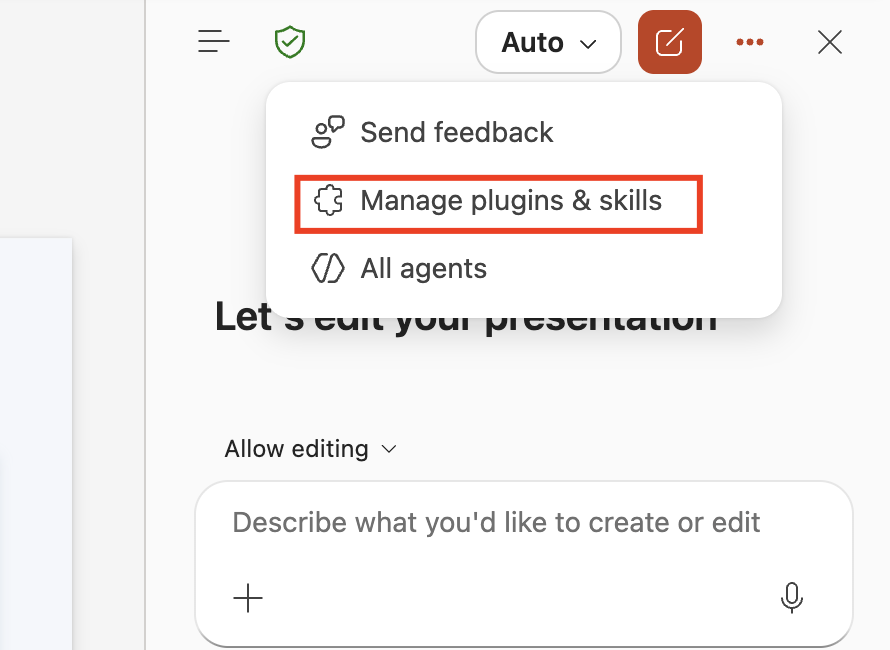
Your custom skills live in a designated Skills folder in OneDrive, so they stay private to you.
What your plan includes
- License: skills in Word, Excel and PowerPoint need Copilot in those apps, which comes with a Microsoft 365 Copilot license.
- Where custom skills work: PowerPoint on the web, Windows and Mac, and Excel. Microsoft has not documented custom skills for Word yet.
- Built-in skills: Microsoft includes ready-made skills, such as reviewing a presentation, that you can switch on or off.
- Copilot Cowork: Cowork also supports custom skills, once your admin turns it on.
When a Copilot skill earns its place
- Leadership slides that always follow the same structure.
- Recurring workbook analysis, such as a monthly variance table in Excel.
- Brand and formatting rules your team applies to every deck.
How to add and use a skill, step by step
Step 1: Write the SKILL.md file. Start with a name and a description of what the skill does and when to use it, then add the instructions. Use CODO, and for repeatable work, add the steps, resources and checks Copilot should follow.
Step 2: Open Custom skills. In Manage plugins and skills, open Custom skills and select Add skill. You can create one manually, upload an existing skill or record one.

Step 3: Upload your skill. Choose Upload and select your skill. Copilot saves it to your Skills folder in OneDrive.
Step 4: Choose the skill. In the prompt box, select +, open Skills and pick your skill.
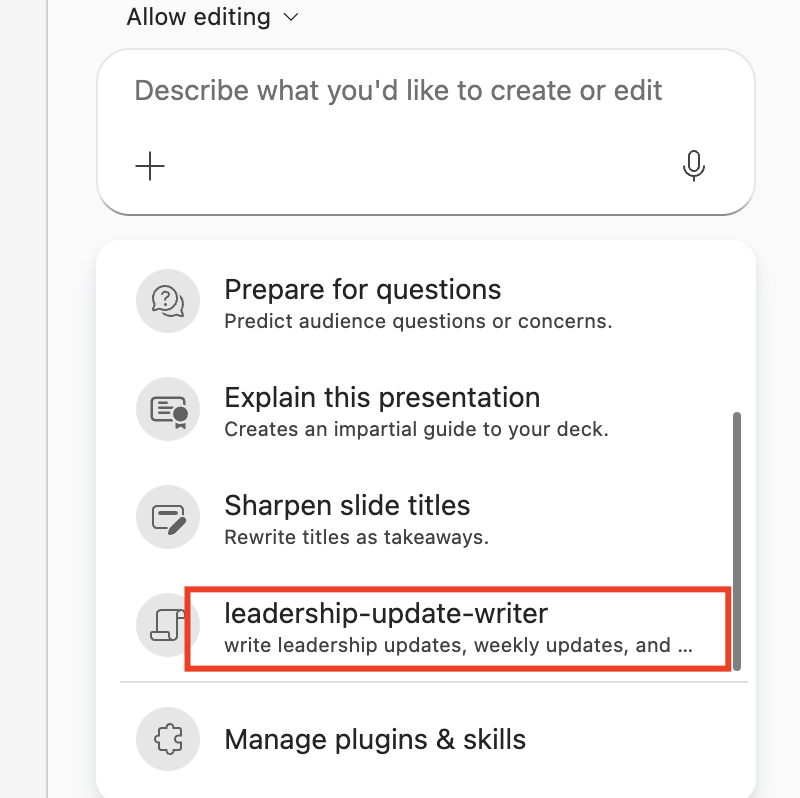
Step 5: Give Copilot the task. For example:
Turn this project information into three slides for the leadership team.
Step 6: Review the result. Check that the content is accurate and complete before you use or share the slides.
Tips that save time
- Match the folder name to the skill name. Copilot skips any folder whose name does not match the name in SKILL.md.
- Select Refresh after you change skill files directly in OneDrive.
- Add the skill to each app. A skill you use in PowerPoint may not appear in Excel automatically.
A CODO skill template you can copy
This skill is built with our CODO framework, plus a name and a description that tell the AI when to use it. In Copilot, save it as SKILL.md and upload it from Custom skills. Replace the details with your own process.
---
name: leadership-update-writer
description: Turns rough weekly notes into a concise, decision-ready leadership update. Use when I ask for a leadership update, weekly update or executive summary from notes.
---

Character: You are a chief of staff who writes for the executive team.

Objective: Turn the notes I provide into a one-page weekly update that keeps leaders informed and helps them make decisions.

Do:
- Keep every fact, figure and date exactly as given.
- Highlight the decisions needed, with owners and deadlines.
- Mark any missing owner or deadline as "Not provided".
- Ask for the notes and the reporting period if I have not shared them.

Don't:
- Don't invent information or add assessments the notes do not support.
- Don't add urgency or status labels that are not in the notes.

Output:
Five sections: executive summary, key developments, decisions and action items, risks or trade-offs, and next steps. Keep it to about one page.
Want to go further? These pages help you decide what to capture as a skill:
- Build SOPs for any workflow with AI: write down a process clearly enough that anyone, including AI, can follow it.
- Our guide to reusable AI assistants: when a project or an assistant fits better than a skill.
- Our guide to Copilot agents: when you need a reusable assistant rather than a single skill.
What will your IT and legal teams ask?
- Where are skills stored? In each person's OneDrive, and personal custom skills are visible only to that person.
- What can Copilot see? Only the content the user can already open in Microsoft 365.
- Is our data protected? Copilot uses Microsoft's enterprise data protection, and your content is not used to train the underlying models.
- Who controls availability? Admins, through licenses and Copilot settings. Availability can vary by app and update channel.
Copilot skills or another tool?
Copilot skills are the natural choice when the work happens in PowerPoint or Excel, because the skill runs right where you build the file.
For skills that work across all your chats, Claude skills and ChatGPT skills are more flexible. On Google, use Gemini skills or Google Workspace skills. Our overview of AI skills compares all five options.
Key takeaways
- Write a SKILL.md with a name, a description and CODO instructions.
- Upload it from Manage plugins and skills.
- Match the folder name to the skill name.
- Add it to each app where you need it.
- Review the output before you share it.




